Reports, decks and sharing
Reports, decks and dashboards the agent builds from your data: publishing and revoking a link, download formats and schedules.
Ask for the output you need and the agent builds it from the analysis.
What you can build
Section titled “What you can build”| Output | Ask for it like this |
|---|---|
| A chart in the chat | “Chart one-star reviews by week for the last six months, split by store.” |
| A report | “Write this up as a report for our head of operations: findings first, then the evidence.” |
| A deck | “Turn these findings into a short deck for the leadership meeting.” |
| A dashboard | “Build a dashboard of contact reasons, resolution and predicted CSAT, filterable by channel.” |
| The underlying rows | “Give me a CSV of the conversations behind this chart.” |
| A plan you can rerun | “Turn what we just did into an analysis plan I can run every month.” See Analysis plans. |
Reports, decks and dashboards are built as interactive web pages with your data inside them. Dashboards here are pages the agent builds for you; the old Dashboards screen has been retired.
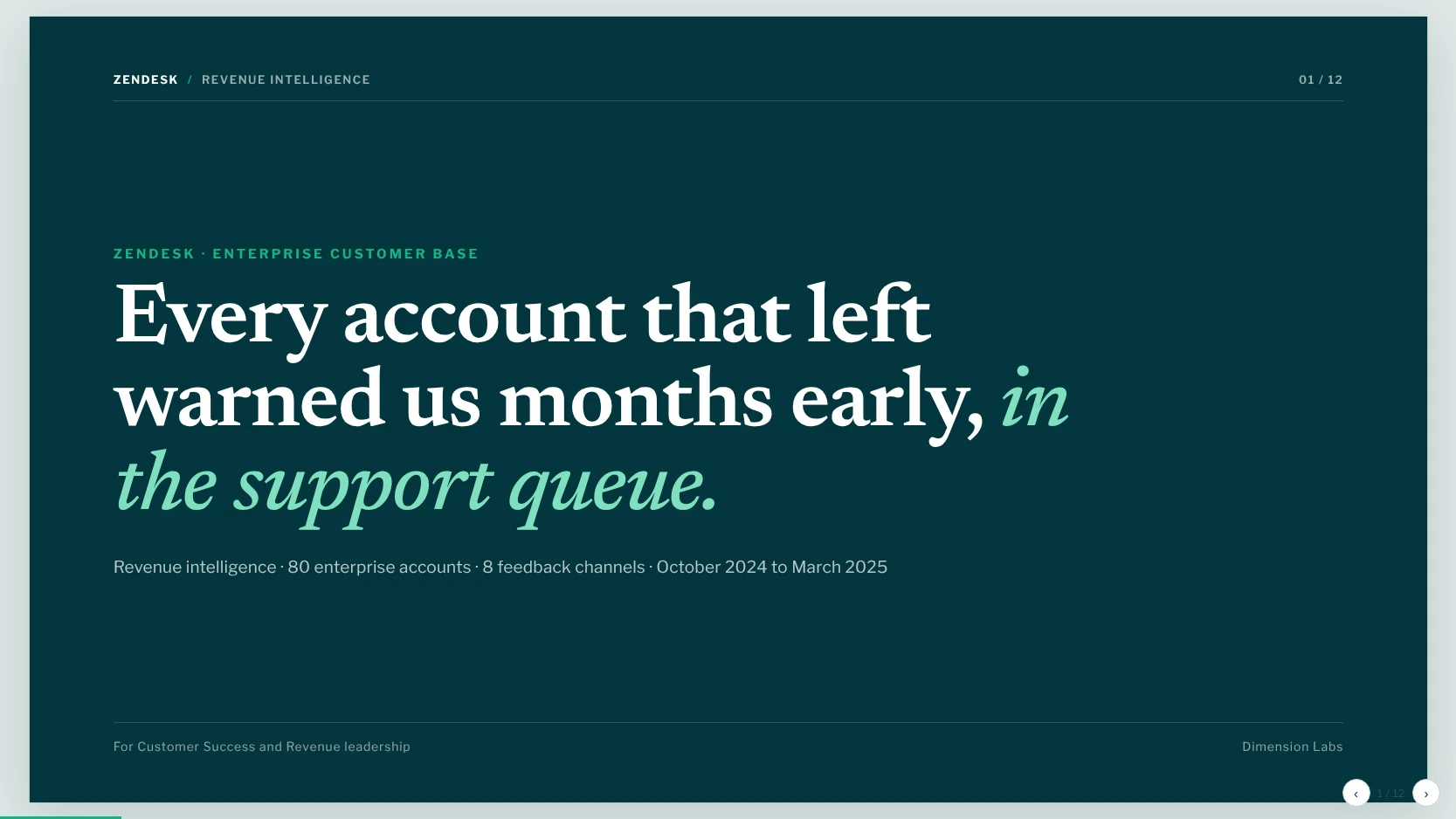 Leadership deck
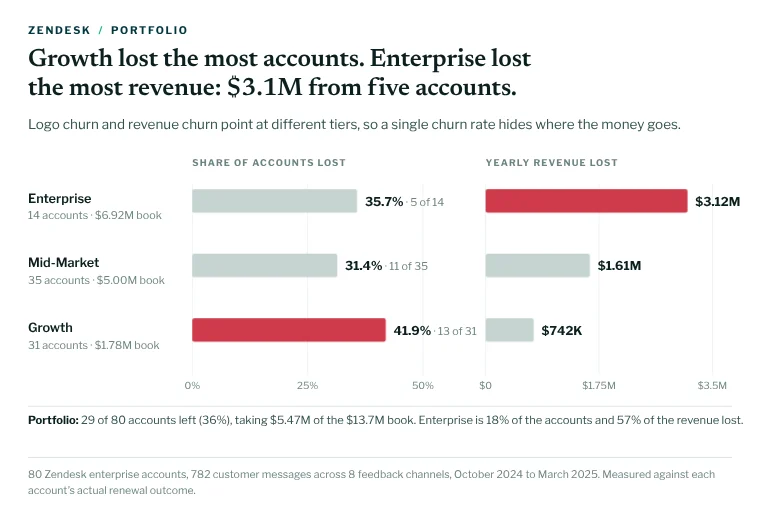 Churn by tier
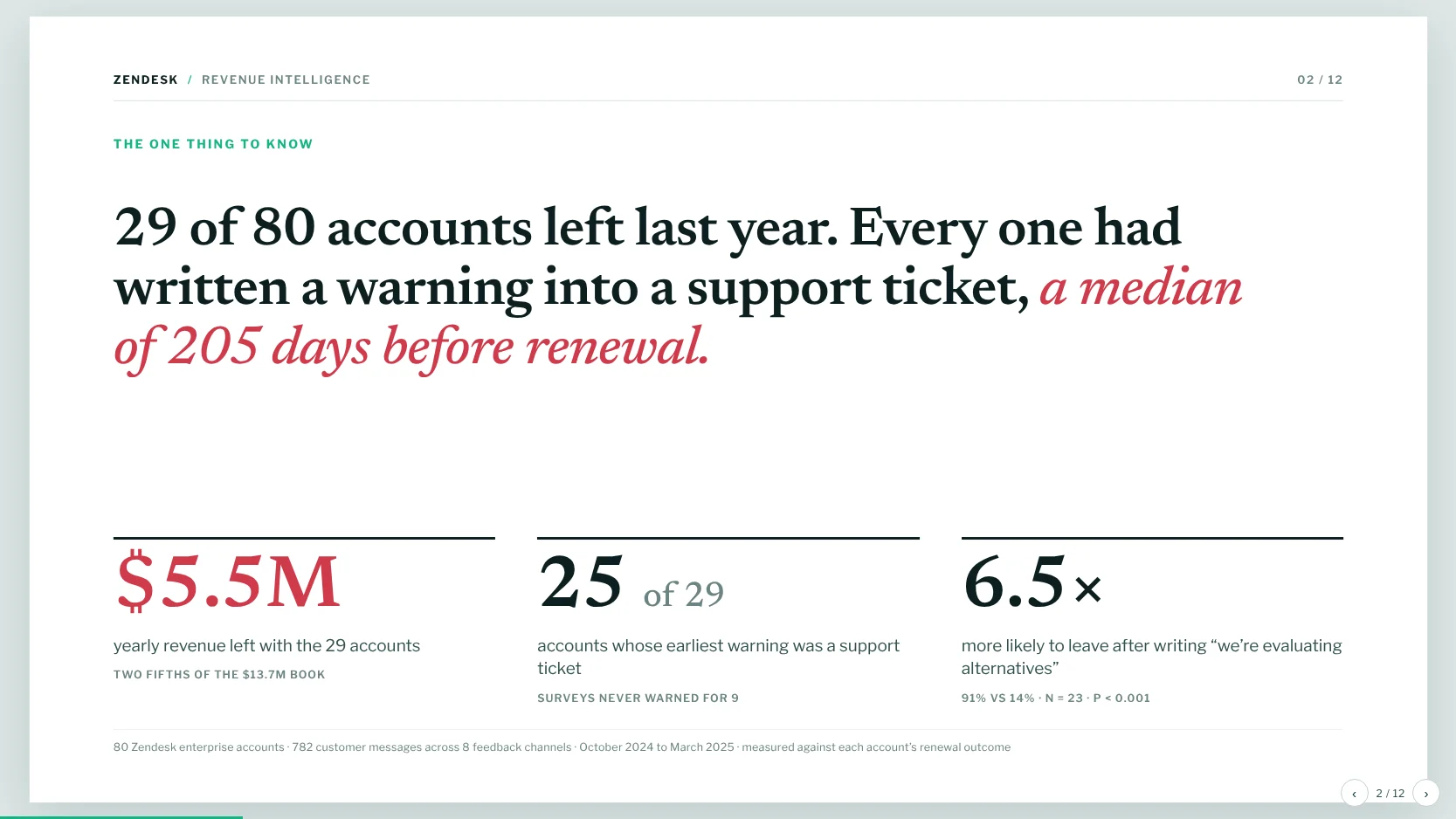 QBR deck
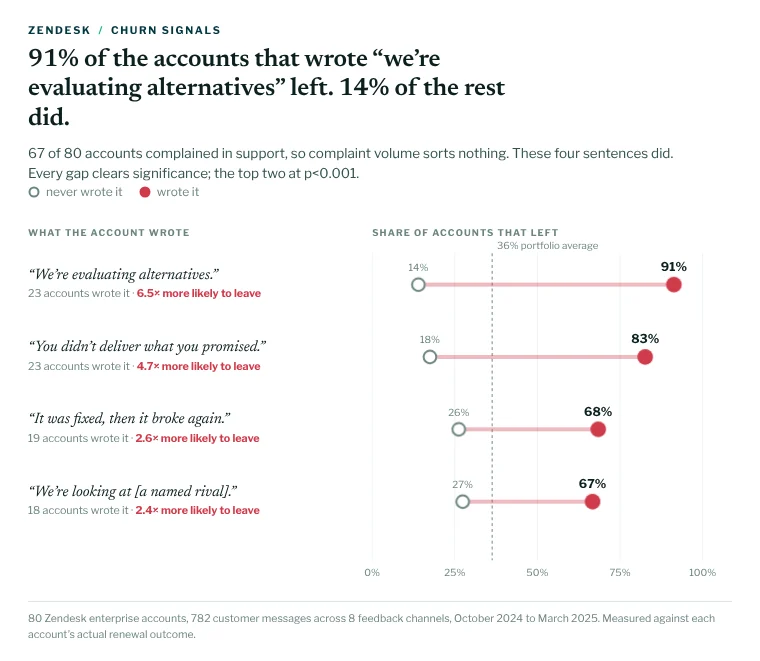 Churn signals
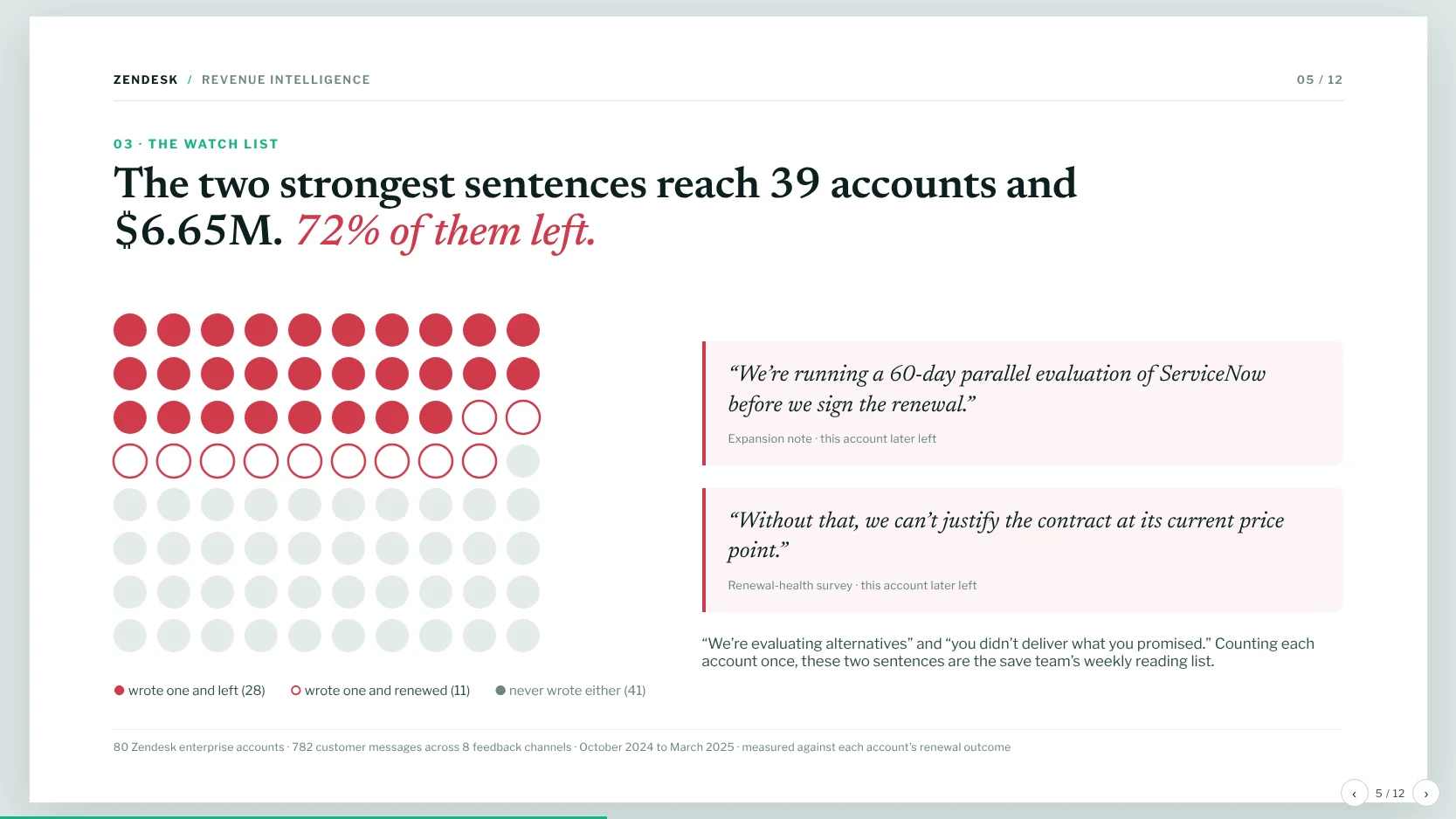 First warning
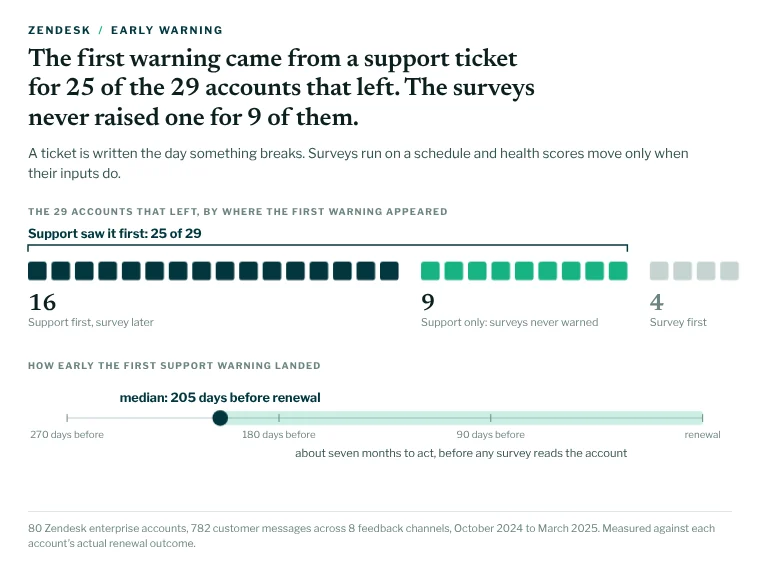 Which channel saw it first
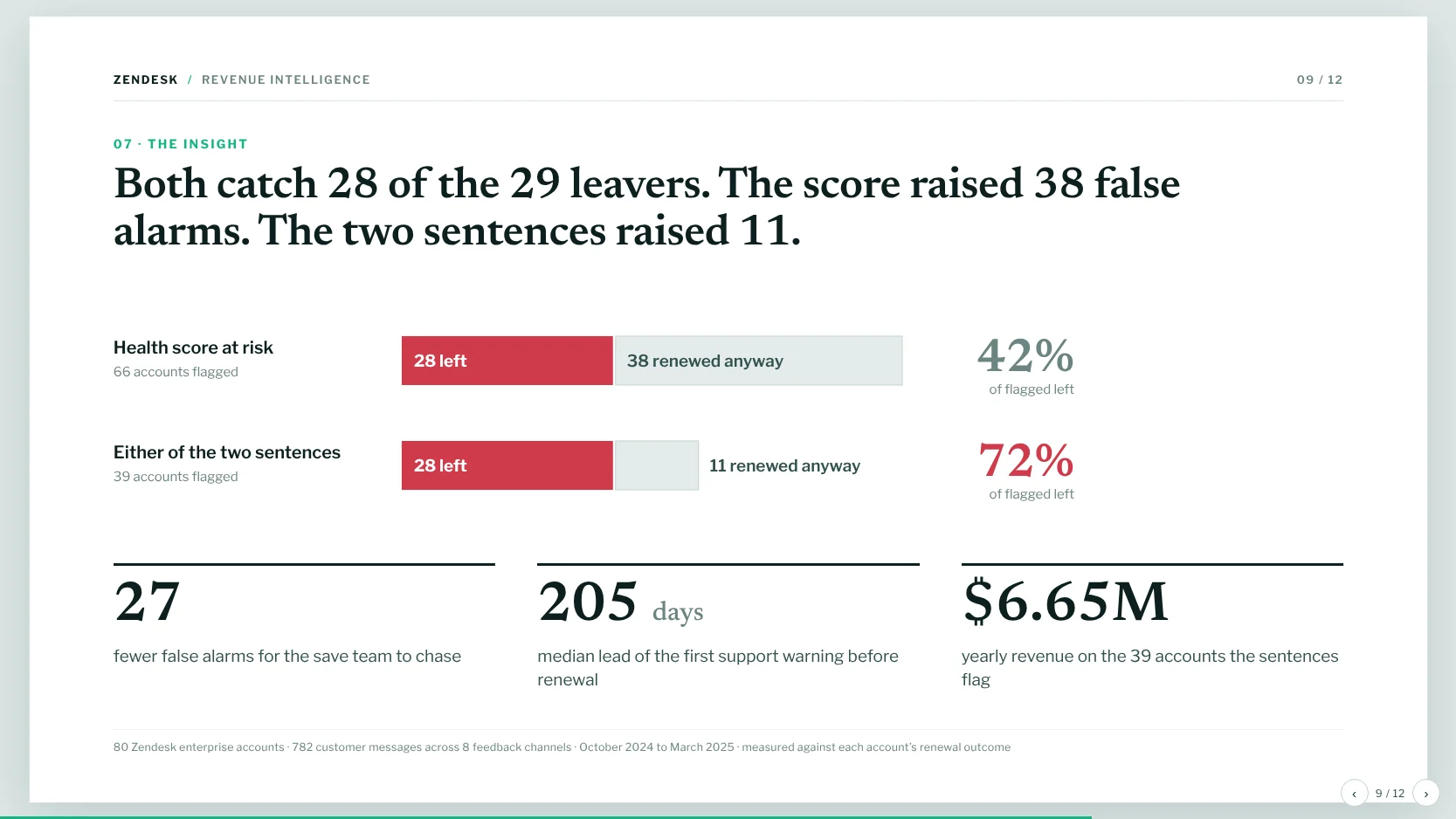 Board readout
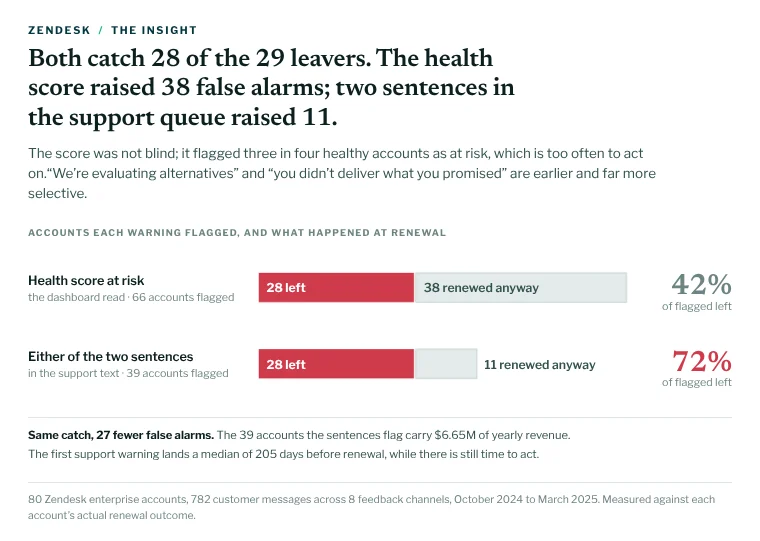 Health score vs two sentences
 Where outputs are saved
Section titled “Where outputs are saved”Everything the agent builds is saved in your project:
- Finished deliverables (reports, decks, dashboards) go into the project’s Final Reports folder.
- Working files, such as a CSV of rows, a plan or chart files, go into the project’s files.
- To find them, open the File Manager from the message box. If you can’t find something, ask “Where did you save the report?”
Download it
Section titled “Download it”You can download an output as HTML, PDF, PowerPoint (PPTX) or Markdown (MD), among other formats. Ask for the format you need, for example “Give me this report as a PDF” or “Export the deck as PPTX”, then download the file from the File Manager.
Share it
Section titled “Share it”Publishing a report, dashboard or deck to Artifacts gives it a link anyone can open, inside or outside your company.
Publish to Artifacts
Section titled “Publish to Artifacts”From the agent:
- Open the File Manager from the message box.
- Find the file. Finished deliverables are in Final Reports.
- Select the button that saves the file as an artifact.
- Copy the link and send it.
Or open the Artifacts page in the app’s left navigation and publish from there.
Revoke a link
Section titled “Revoke a link”A shared link can be revoked. Open the artifact on the Artifacts page and revoke its link. Anyone who opens the old link after that can no longer see it.
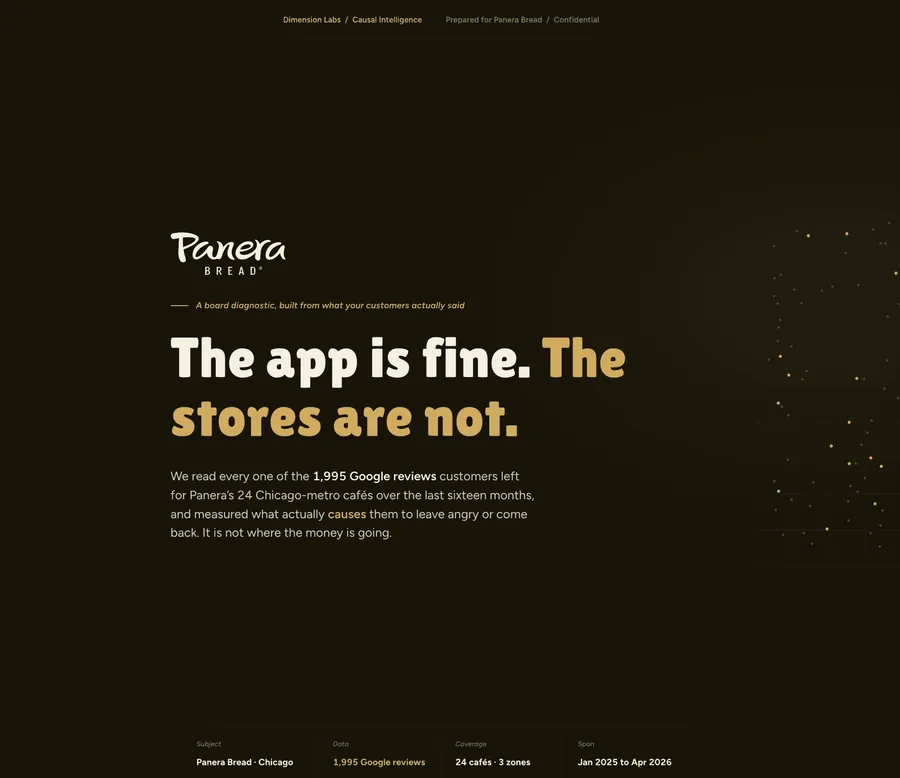 Store Performance Diagnostic Panera Bread
 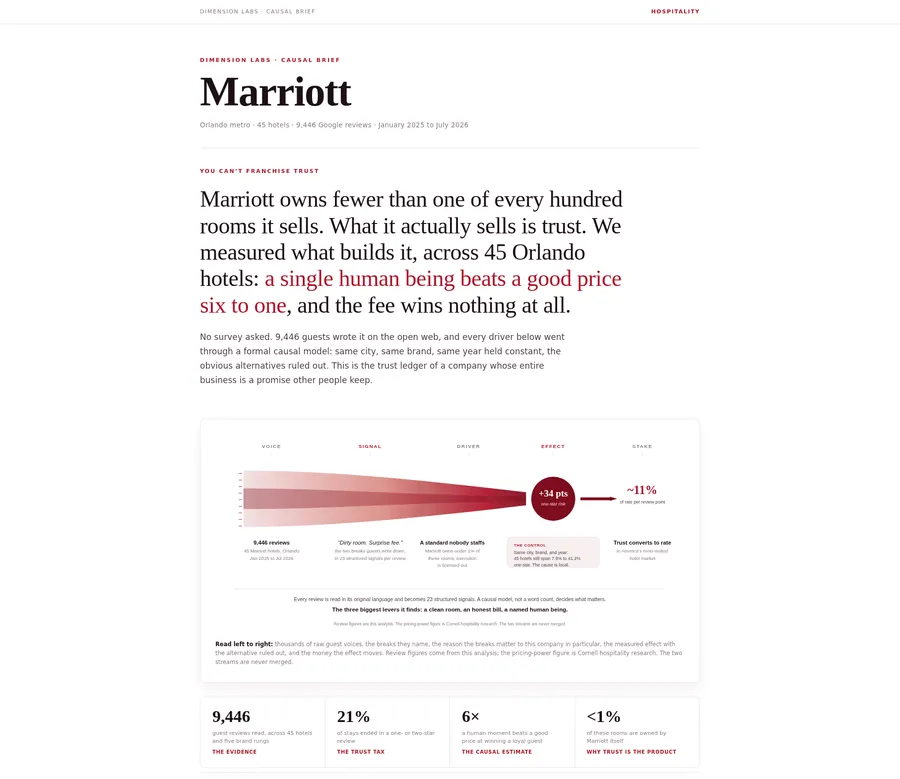 Multi-Location Review Analysis Marriott
 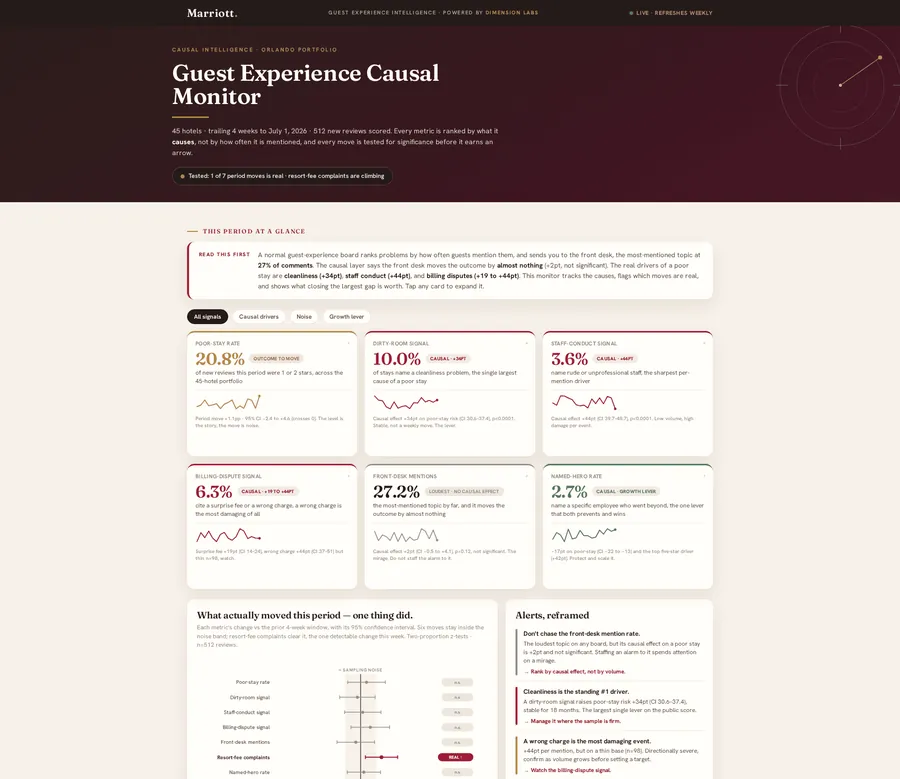 Guest Experience Monitor Marriott
 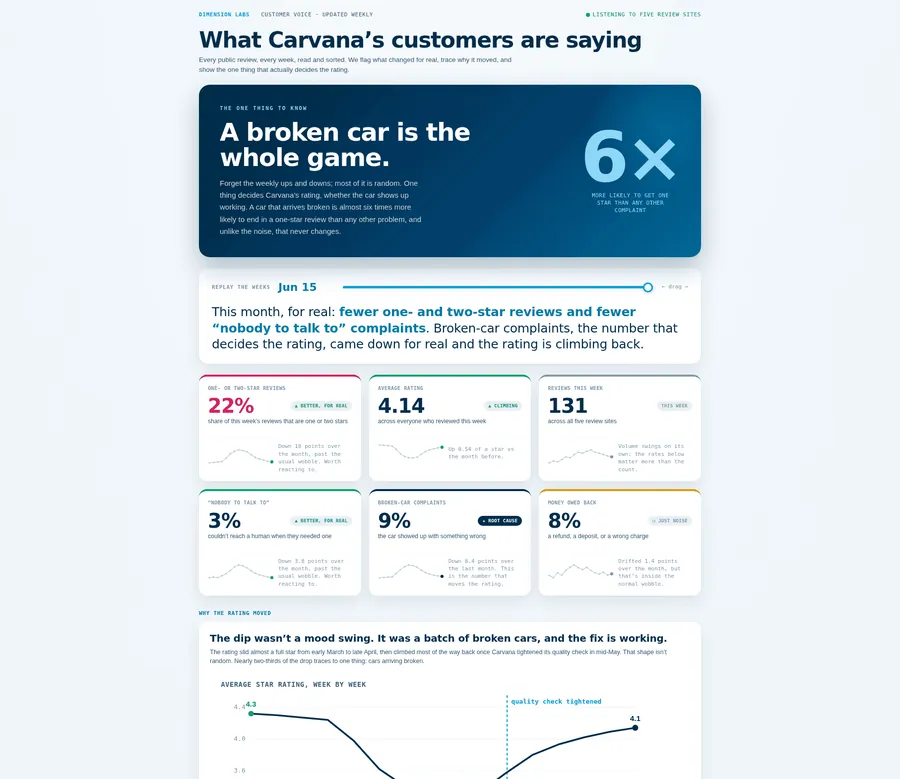 Customer Voice Monitor Carvana
 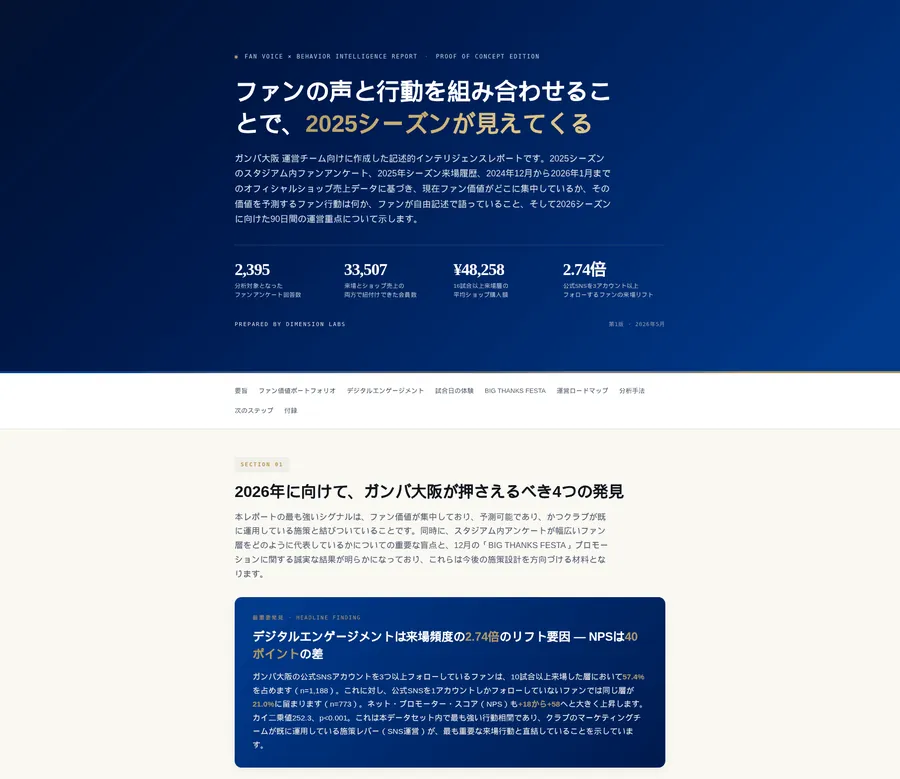 Fan Behavior Intelligence (Japanese) Gamba Osaka
 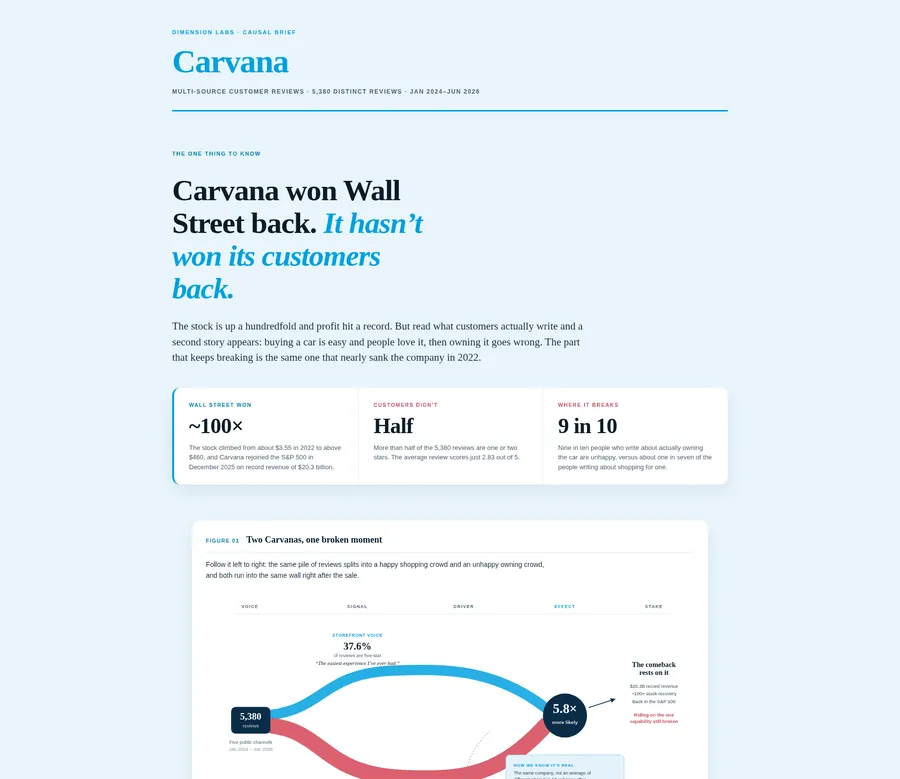 Multi-Source Review Analysis Carvana
 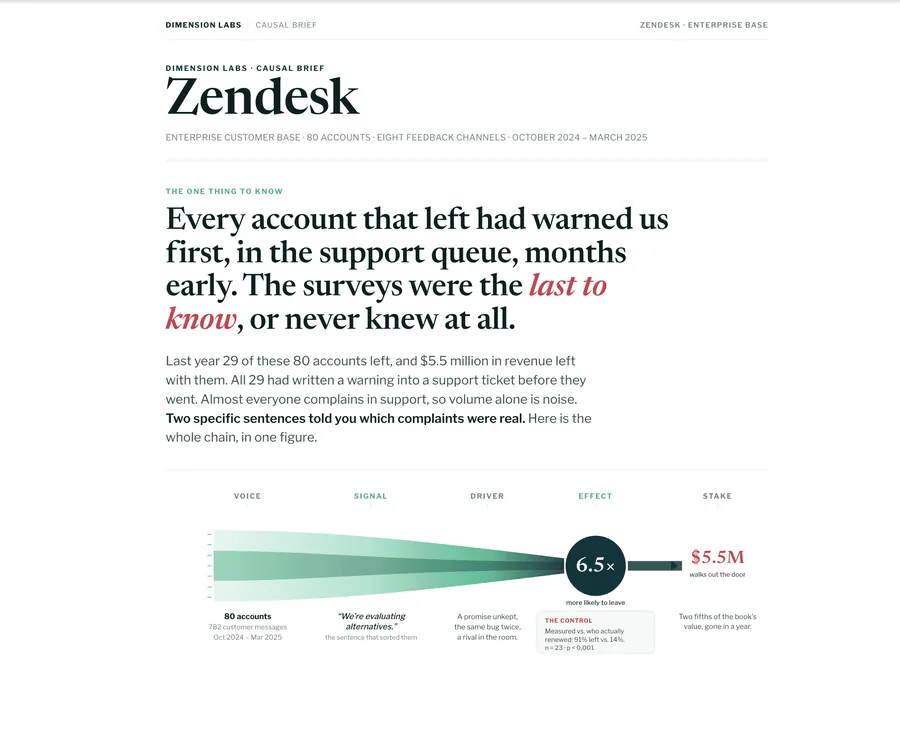 Churn Analysis Zendesk
 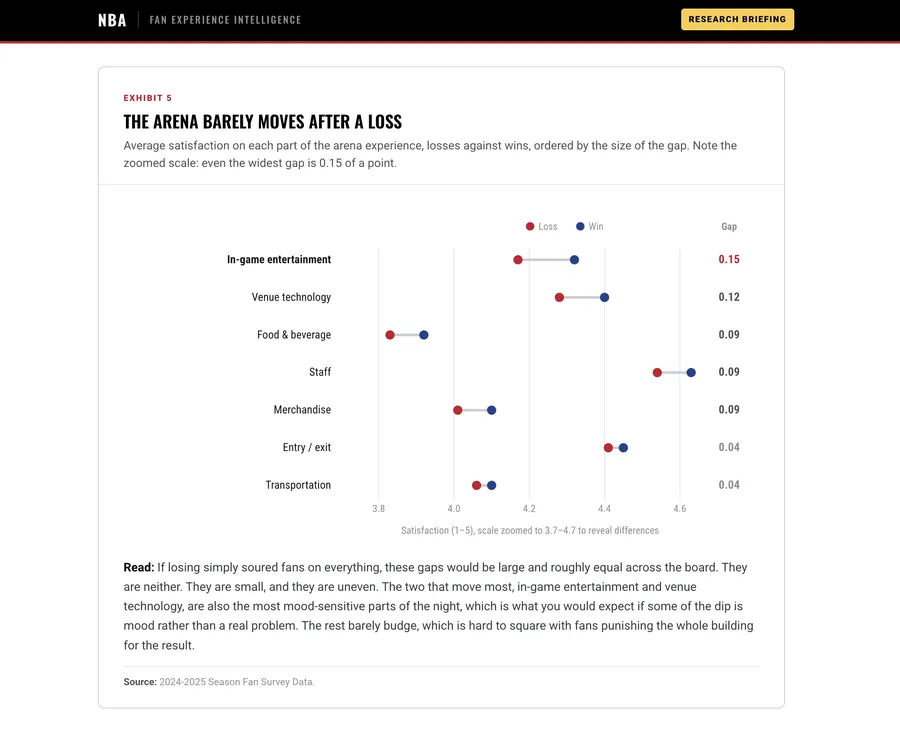 Fan Experience Intelligence NBA
 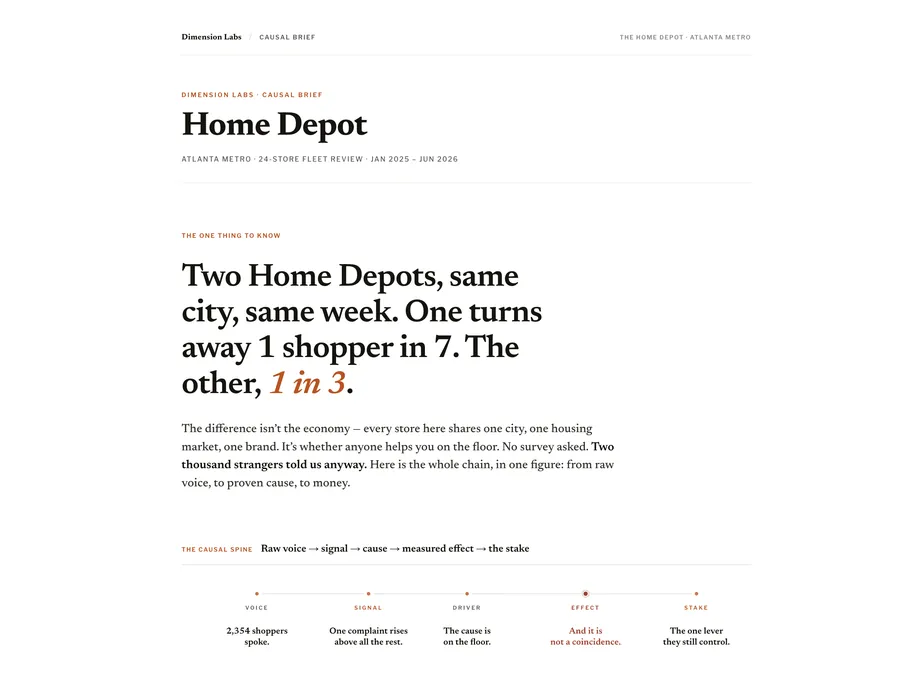 Multi-Location Review Analysis Home Depot
 In your brand
Section titled “In your brand”To get your colors, fonts and layout, add report execution guidelines to the project (a short file on how reports should look), or attach an example report or deck and ask the agent to match it. See Projects and standing instructions.
Start from a shape
Section titled “Start from a shape”To start from a known structure, ask for it: “Build this as a one-page executive summary”, “Use the same sections as last month’s report”, or attach a template and ask the agent to follow it. You can ask for any other shape afterwards.
Run it on a schedule
Section titled “Run it on a schedule”The agent can schedule recurring work, such as a weekly digest or a monthly report.
- Start from a plan. Pair the schedule with an analysis plan so each run has the same shape and the results compare.
- Ask for the schedule, with a time zone. “Run this plan every Monday at 8am Pacific.” The agent’s clock runs on UTC, so always say which time zone you mean.
- Find the results in the project’s Final Reports folder, like any other run.
- Check or stop it by asking the agent: “Which scheduled runs does this project have?” or “Stop the Monday digest.”
Your data has to be up to date for a scheduled run to see it. A live integration is enriched every day; a file you upload needs a backfill before its Dimensions appear in the next run.